Installation Guide
Install Fortiva Personal
Download, install, and create your encrypted vault on Windows. No account, no cloud — everything stays on your PC.
Overview
What you are installing and where your data lives.
What is Fortiva Personal?
Fortiva Personal is a free, zero-knowledge password manager for Windows. Passwords are encrypted in a
vault.fva file on your machine using AES-256-GCM and Argon2id. The installer is a single
EXE — it bundles .NET 8, the Windows App SDK, WebView2, and the Visual C++ runtime when needed.
Who is this guide for?
Anyone installing Fortiva Personal on their own Windows PC. No admin rights are required for a standard per-user install.
- Download the latest installer
- Run setup
- Create your master password
- Enable Windows Hello (optional)
System requirements
Minimum hardware and software for Fortiva Personal.
| Requirement | Minimum |
|---|---|
| Operating system | Windows 10 version 2004 (build 19041) or later |
| Architecture | 64-bit (x64) |
| RAM | 256 MB free |
| Disk space | 250 MB for the app; vault grows with your entries |
| .NET / App SDK | Not required — bundled in the installer |
| WebView2 & VC++ | Installed automatically by setup if missing |
| Internet | Not required for daily use (needed once for download) |
Download
Get the latest Fortiva Personal installer from GitHub Releases.
Download for Windows
Use the download button on the Fortiva website or go directly to
GitHub Releases
and download FortivaPersonal-{version}-Setup.exe.
Verify the SHA-256 checksum shown on the release page before installing if you want extra assurance.
Install steps
Standard installation — about 30 seconds after prerequisites are satisfied.
- Double-click
FortivaPersonal-*-Setup.exe. Personal installs per-user — no administrator prompt. - Click Next through the setup wizard.
- Choose an install folder (default:
%LOCALAPPDATA%\Programs\icmclab studio\Fortiva Personal\). - Choose a Start Menu folder (default:
Fortiva (icmclab studio)). - Optionally tick Create a desktop icon, then click Install.
- Wait for the progress bar. WebView2 or VC++ install silently first if your PC needs them.
- Tick Launch Fortiva Personal and click Finish.
What gets installed
| Item | Location |
|---|---|
| Application files | %LOCALAPPDATA%\Programs\icmclab studio\Fortiva Personal\ |
| Start Menu shortcuts | Fortiva (icmclab studio) |
| Vault data (after first run) | %AppData%\Fortiva\vault.fva |
Vault data lives in your user profile, not in the install folder. Always back up your vault before uninstalling.
First launch
The four-step onboarding wizard appears when no vault exists yet.
Step 1 — Welcome
Introduction to Fortiva's local, zero-knowledge model. Click Get started.
Step 2 — Master password
Choose a strong master password. Fortiva cannot reset or recover it — write it down offline. The strength meter must reach at least Moderate before you can continue. Confirm the password and click Continue.
Step 3 — Windows Hello (optional)
Click Enable Windows Hello for fingerprint, face, or PIN unlock — or Skip for now and enable later in Settings.
Step 4 — Create vault
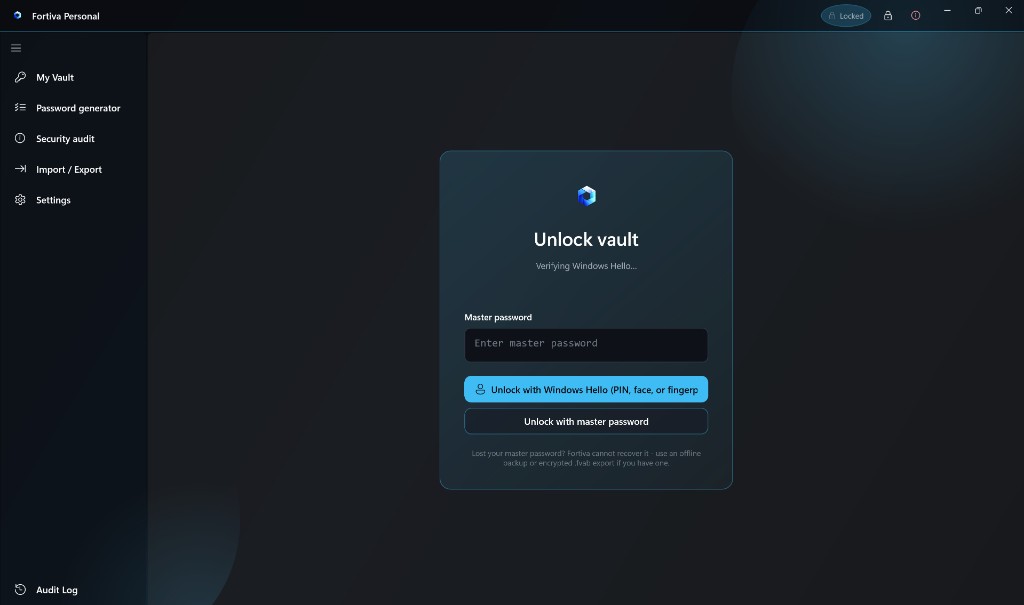
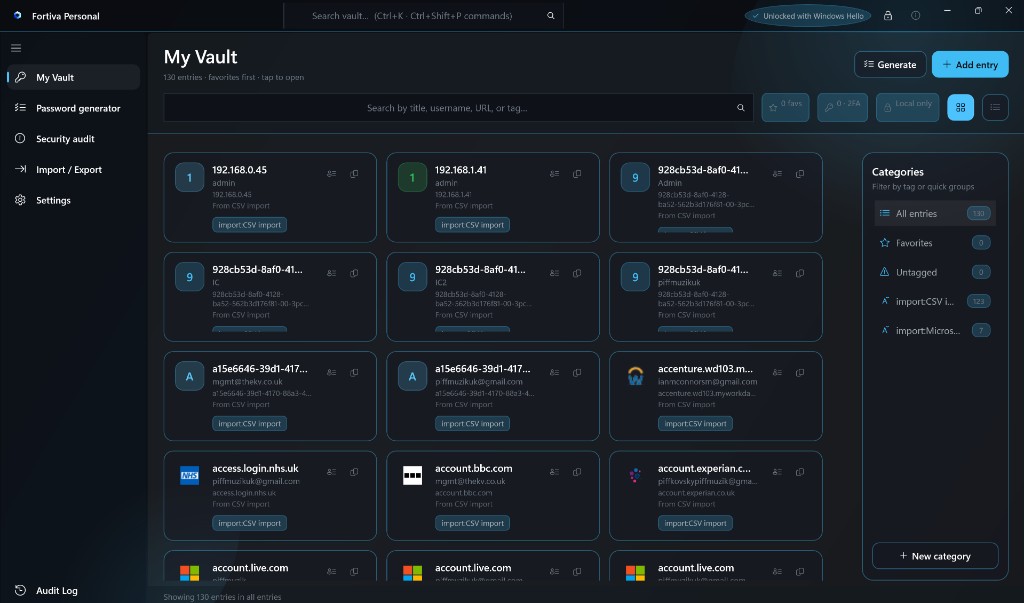
Enable Paranoia Mode (recommended), check I have recorded my master password offline, then click Create vault. Argon2id key derivation runs for a few seconds; your vault unlocks and opens to My Vault.
SmartScreen warning
What to do if Windows shows "Windows protected your PC" on first run.
Unsigned installer
Fortiva Personal is not Authenticode-signed yet. SmartScreen may warn on the first run even though the file is safe. Verify the SHA-256 on GitHub Releases, then click More info → Run anyway.
Uninstall
Removing Fortiva Personal permanently deletes your vault and all local data.
How to uninstall
- Start Menu →
Fortiva (icmclab studio)→ Uninstall Fortiva Personal - Settings → Apps → Installed apps → Fortiva → Uninstall
What is deleted
Uninstall removes application files and all user data:
%AppData%\Fortiva\— vault, snapshots, Hello, settings%LocalAppData%\FortivaPersonal\— logs, extension staging
Export an encrypted .fva backup first via Import / Export if you need to keep your passwords.