User Guide
Using Fortiva Personal
Day-to-day guide for your local vault, browser Fill, security audit, backups, and settings — no cloud account required.
Overview
What Fortiva does and how your data stays on your PC.
What is Fortiva?
Fortiva is a zero-knowledge, local-first password manager for Windows. Every password is encrypted on your device with AES-256-GCM (Windows CNG) and Argon2id key derivation. Your master password never leaves your machine. There is no cloud sync, no telemetry, and no background service when the app is closed.
Who is it for?
Individuals who want a Windows-native password manager with full control over where credentials are stored.
What can I do with it?
- Store unlimited logins, secure notes, and TOTP codes in an encrypted vault
- Unlock with a master password or Windows Hello
- Fill website logins in Chrome or Edge when you click Fill
- Run a security audit for weak, reused, and missing passwords
- Import from KeePass, browsers, or CSV; export encrypted backups
- Use a portable vault on USB (optional)
Quick start
Five steps after installation. New to Fortiva? Start with the installation guide.
- Create your vault — pick a strong master password and write it down offline. Fortiva cannot reset it.
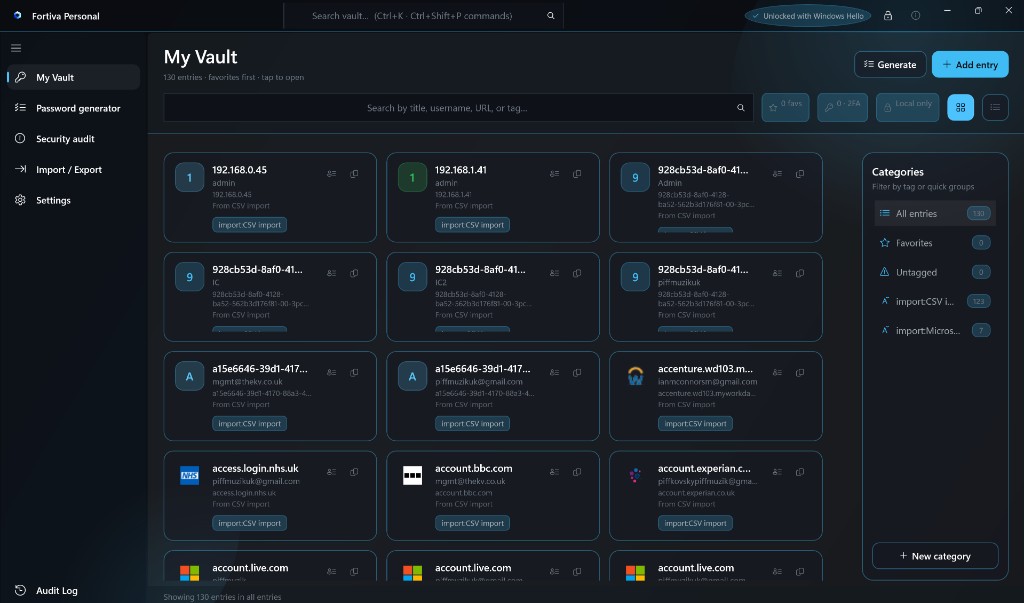
- Add a login — My Vault → + Add entry → fill title, username, password, and Website (the login page URL).
- Connect the browser — Settings → Browser extension → Connect browser. Reload the extension if Settings shows a version mismatch.
- Fill on a website — keep Fortiva unlocked, open a login page → Fortiva toolbar icon → Fill.
- Back up — Import / Export → Export encrypted → save the
.fvafile somewhere safe.
Glossary
Plain-language terms used in Fortiva.
| Term | Meaning |
|---|---|
| Vault | Your encrypted password store (vault.fva) on this PC. |
| Master password | The one password that unlocks the vault. Never stored by Fortiva. |
| Windows Hello | Fingerprint, face, or PIN unlock — optional shortcut; master password still needed for recovery. |
| Fill | You click Fill in the browser; Fortiva sends credentials to the page. Never automatic on page load. |
| Paranoia Mode | Detects vault rollback — vault may open read-only until you confirm in Settings. |
| Security audit | In-app health check for passwords and settings — no data sent online. |
| Panic lock | Shield icon (top-right) — locks vault and hides the window instantly. |
My Vault
Adding, searching, and managing saved credentials.
Search & shortcuts
- Ctrl + K — focus vault search (title, username, URL, tags)
- Ctrl + Shift + P — command palette (jump to Settings, lock, audit, etc.)
- Ctrl + N — quick add entry
Add an entry
- Click + Add entry.
- Fill Title, Username, Password (or use the dice icon / generator), and Website.
- Add optional tags and notes, then Save.
Copy & reveal passwords
Click the copy icon on any row to copy the password — clipboard auto-clears after your configured timeout (default 30 seconds). Open an entry and use the eye icon to reveal a password for 5 seconds.
Unlock, lock & panic lock
Type your master password or use Windows Hello on the unlock screen. Auto-lock runs after inactivity (default 5 minutes). The red shield icon instantly locks and hides the window — use it if someone approaches your screen.
Security audit
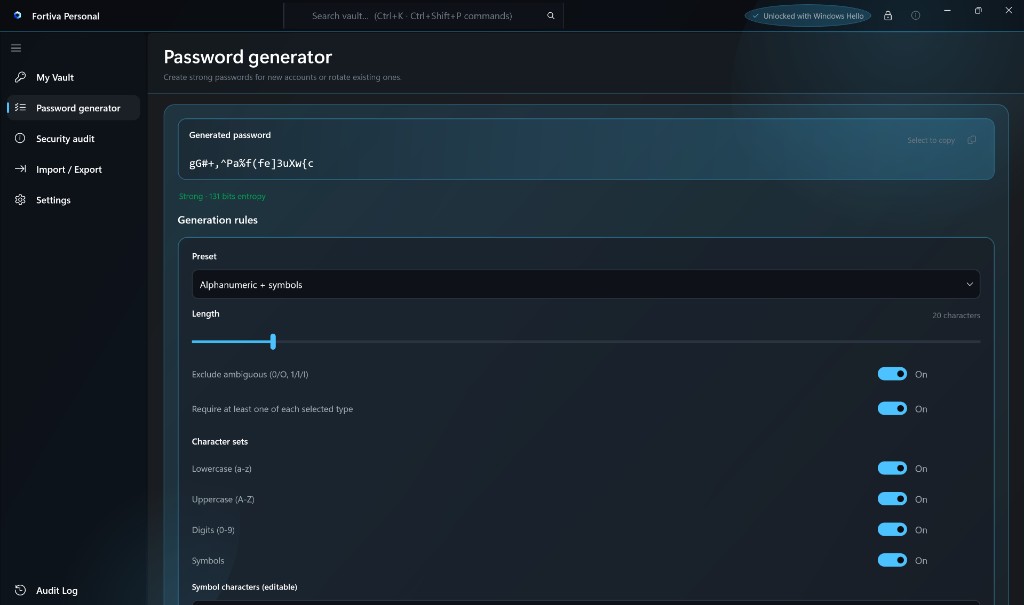
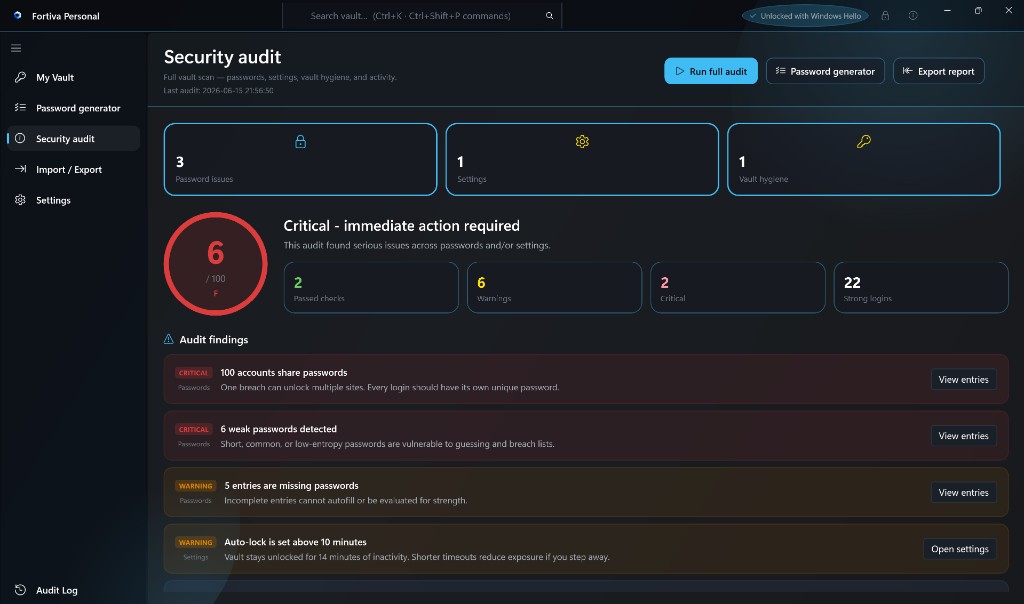
In-app password and settings health check. Runs when you open the page.
What it checks
- Passwords — weak, reused, old, missing, similar URLs
- Settings — auto-lock, clipboard clear, Hello, Paranoia Mode
- Vault hygiene — HTTP URLs, missing site URLs, backup recommendation, duplicates
Using findings
Review your score (0–100) and severity badges: CRITICAL, WARNING, INFO, PASS. Each finding has action buttons — View entries, Open settings, Export backup, and more. Export JSON or HTML reports contain counts only — never secrets.
Import & export
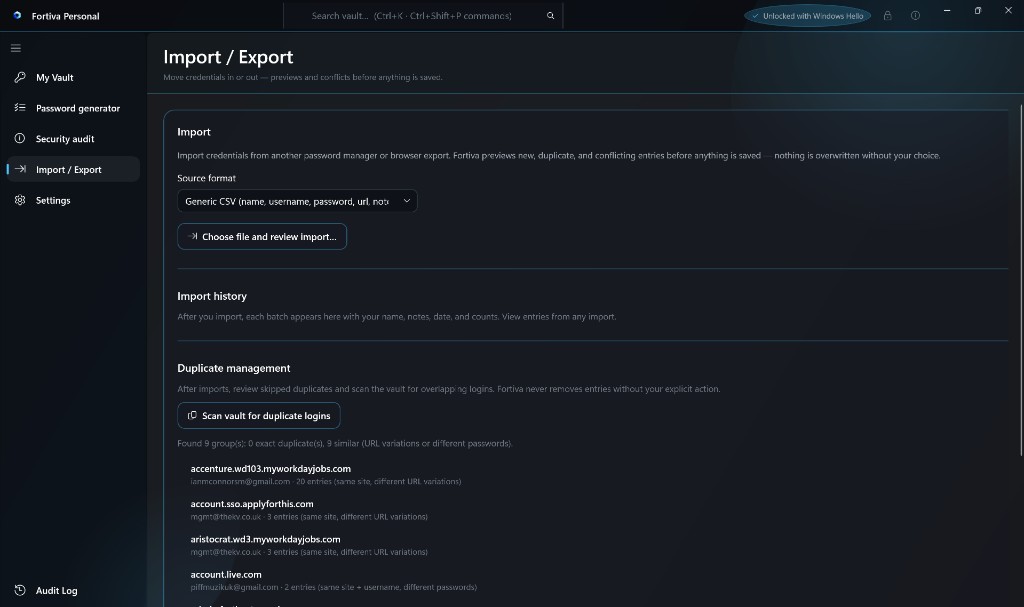
Migrate from other tools and back up your vault.
Supported import formats
- Fortiva encrypted backup (
.fva,.fvab,.json) - Generic CSV (
title, username, password, url, notes) - KeePass CSV, Chrome/Edge password export, Apple Keychain CSV
Choose format → Choose file and review import… → preview duplicates/conflicts → confirm.
Encrypted backup
Export encrypted re-encrypts your vault with a separate backup password. Safe to store in cloud or email. Plaintext CSV is available for migration only — passwords are visible in the file.
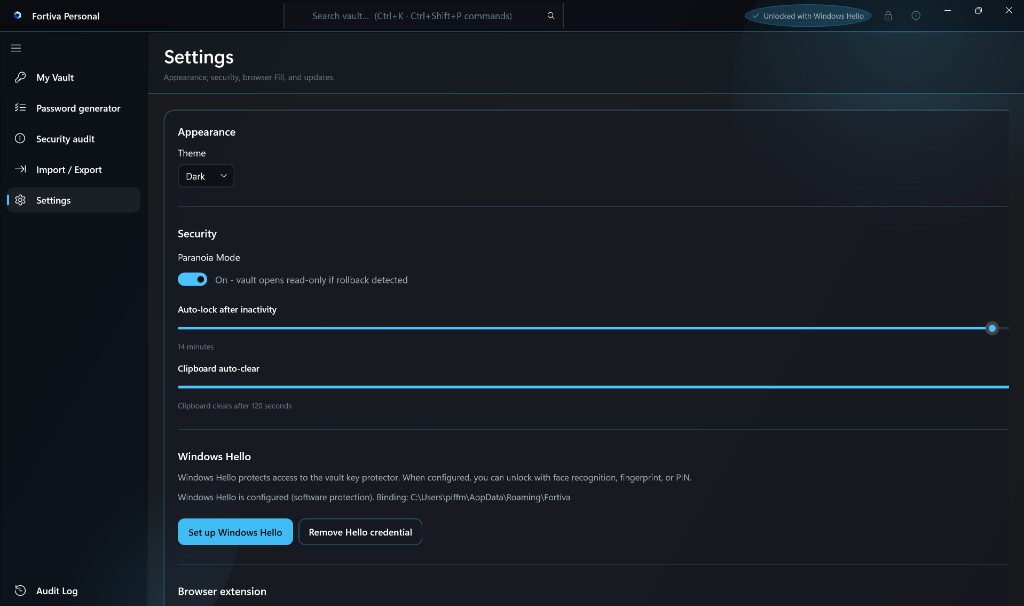
Settings
Appearance, security, updates, Hello, and portable mode.
| Area | Options |
|---|---|
| Appearance | System, Light, or Dark theme |
| Security | Paranoia Mode, auto-lock (30 s – 15 min), clipboard auto-clear (5 – 120 s) |
| Updates | Automatic GitHub updates (optional, max once per 24 h); manual Check for updates |
| Master password | Change password — re-keys the vault immediately |
| Portable mode | Open or create vault on USB… — vault stays on removable media |
Windows Hello
Faster unlock with biometrics — master password remains the recovery root.
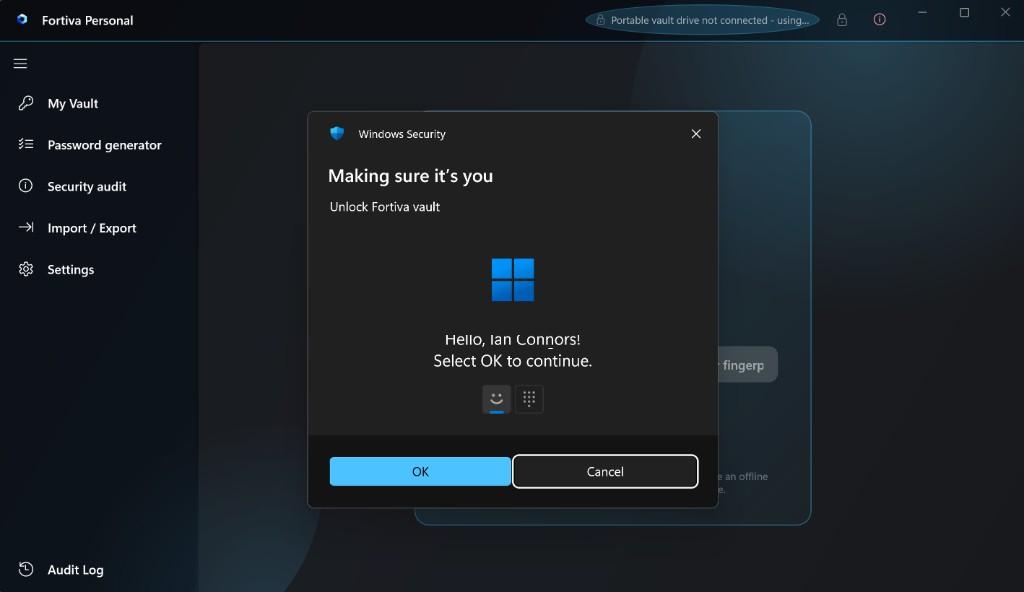
Set up Hello
- Settings → Windows Hello → Set up Windows Hello
- Complete the Windows prompt (fingerprint, face, or PIN).
- Fortiva stores
hello.keyprotectnext to your vault. TPM hardware upgrade may be offered on supported PCs.
Important
Hello does not replace your master password. You still need it for recovery, changing the master password, encrypted export, and setting up on a new device. Remove Hello via Settings → Remove Hello credential.
Browser extension
Fortiva Autofill for Chrome and Edge — manual Fill only, localhost bridge.
One-time setup
- Settings → Browser extension → Connect browser
- If the browser is closed, Fortiva opens it with the extension loaded.
- If already open, Fortiva may offer to close and reopen — or use manual Load unpacked from the path shown in Settings.
- After Fortiva updates: run Connect browser again, then Reload the extension in
chrome://extensionsoredge://extensions.
Fill a login
- Keep Fortiva unlocked on this PC.
- Open a website login page with a matching Website field in your vault entry.
- Click the Fortiva toolbar icon → confirm Ready to fill → Fill.
Credentials are never injected on page load. The extension talks only to your local Fortiva app at 127.0.0.1:7847.
Troubleshooting
Common issues and fixes.
App won't launch
Re-run the Fortiva installer — it bundles .NET, App SDK, WebView2, and VC++. Do not copy files out of the install folder manually.
Forgot master password
There is no reset. Fortiva is zero-knowledge. Restore from an encrypted .fva backup if you have one and know the backup password.
Vault rollback warning
If Windows restored an older vault.fva, Fortiva shows a warning. In Paranoia Mode the vault opens read-only until you acknowledge in Settings, or restore from backup.
Windows Hello issues
Configure Hello in Windows Settings first. If setup fails, software Hello may still work. Use Remove Hello credential and set up again if the binding is orphaned.
Extension stale after update
Connect browser + reload extension. Version in edge://extensions must match Fortiva About.
Security & privacy
How Fortiva handles your data on-device.
- Zero-knowledge — icmclab studio never receives your vault
- No telemetry — no analytics or usage tracking
- No background service — runs only when you open it
- One network call — optional GitHub update check (Personal); disable in Settings
- Five rolling snapshots — encrypted backups after each save
Full details: website privacy policy and Fortiva PRIVACY.md.